作为IT运维人员,你是否经常需要远程协助用户,却总要费劲询问对方IP地址?作为普通用户,你是否希望在办公室一眼就能快速识别自己的电脑?今天分享一个实用方案——开机自动将电脑名称和IP地址设置为桌面壁纸,完美解决这些痛点。
本文将提供完整的三段式脚本,实现从壁纸生成到开机自启的全流程自动化。
方案亮点
零依赖: 纯PowerShell实现,无需第三方软件 自动更新: 每次开机自动获取最新IP地址 静默运行: 无弹窗干扰,后台自动完成 样式美观: Windows 11默认蓝色背景,专业简洁 即插即用: 一键部署,立即生效
核心脚本解析
脚本1:交互式壁纸生成器(带颜色选择)
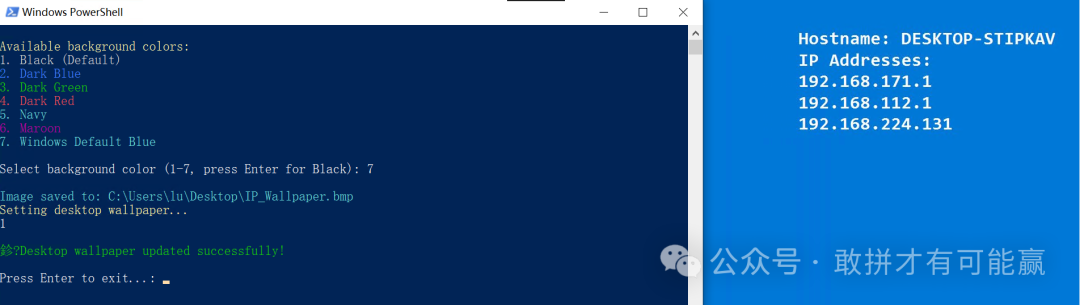
这个版本提供7种背景颜色选择,适合需要个性化设置的场合。
powershell
复制
# Load required assemblies (compatible with PowerShell 7+)
try {
    Add-Type -AssemblyName System.Drawing -ErrorAction Stop
} catch {
    Write-Host "Error: Unable to load System.Drawing assembly." -ForegroundColor Red
    Read-Host "Press Enter to exit"
    exit
}

# Get all IPv4 addresses (excluding loopback)
try {
    $ipAddresses = Get-NetIPAddress -AddressFamily IPv4 -ErrorAction Stop |
                   Where-Object { $_.InterfaceAlias -notlike "Loopback*" } |
                   Select-Object -ExpandProperty IPAddress
} catch {
    Write-Host "Error: Unable to retrieve IP addresses." -ForegroundColor Red
    Read-Host "Press Enter to exit"
    exit
}

$hostname = $env:COMPUTERNAME

# Background color selection
Write-Host "`nAvailable background colors:" -ForegroundColor Yellow
Write-Host "1. Black (Default)" -ForegroundColor Gray
Write-Host "2. Dark Blue" -ForegroundColor Blue
Write-Host "3. Dark Green" -ForegroundColor Green
Write-Host "4. Dark Red" -ForegroundColor Red
Write-Host "5. Navy" -ForegroundColor Cyan
Write-Host "6. Maroon" -ForegroundColor Magenta
Write-Host "7. Windows Default Blue" -ForegroundColor Cyan
$colorChoice = Read-Host "`nSelect background color (1-7, press Enter for Black)"

switch ($colorChoice) {
    "2" { $bgColor = [System.Drawing.Color]::DarkBlue }
    "3" { $bgColor = [System.Drawing.Color]::DarkGreen }
    "4" { $bgColor = [System.Drawing.Color]::DarkRed }
    "5" { $bgColor = [System.Drawing.Color]::Navy }
    "6" { $bgColor = [System.Drawing.Color]::Maroon }
    "7" { $bgColor = [System.Drawing.Color]::FromArgb(0, 120, 215) }  # Windows 11 default blue
    default { $bgColor = [System.Drawing.Color]::Black }
}

try {
    # Create image
    $bmp = New-Object System.Drawing.Bitmap(1920, 1080)
    $graphics = [System.Drawing.Graphics]::FromImage($bmp)
    $graphics.Clear($bgColor)

    # Set font and color
    $font = New-Object System.Drawing.Font("Consolas", 24, [System.Drawing.FontStyle]::Bold)
    $brush = New-Object System.Drawing.SolidBrush([System.Drawing.Color]::White)

    # Prepare text
    $ipList = if ($ipAddresses) { $ipAddresses -join "`n" } else { "No IP addresses found" }
    $text = "Hostname: $hostname`nIP Addresses:`n$ipList"

    # Measure text size to position in upper-right corner
    $margin = 50  # margin from top and right edges
    $textSize = $graphics.MeasureString($text, $font)
    $x = $bmp.Width - $textSize.Width - $margin
    $y = $margin

    # Draw text with anti-aliasing
    $graphics.SmoothingMode = [System.Drawing.Drawing2D.SmoothingMode]::AntiAlias
    $graphics.DrawString($text, $font, $brush, $x, $y)

    # Save image (use BMP format for better compatibility)
    $outputPath = "$env:USERPROFILE\Desktop\IP_Wallpaper.bmp"
    $bmp.Save($outputPath, [System.Drawing.Imaging.ImageFormat]::Bmp)

    Write-Host "`nImage saved to: $outputPath" -ForegroundColor Cyan

    # --- Set Wallpaper using Windows API (No Explorer Restart) ---
    Write-Host "Setting desktop wallpaper..." -ForegroundColor Yellow

    # Define Windows API
    Add-Type @"
using System;
using System.Runtime.InteropServices;
public class WallpaperAPI {
    [DllImport("user32.dll", CharSet = CharSet.Auto, SetLastError = true)]
    public static extern int SystemParametersInfo(int uAction, int uParam, string lpvParam, int fuWinIni);
}
"@

    # Update registry (for persistence)
    Set-ItemProperty -Path "HKCU:\Control Panel\Desktop" -Name Wallpaper -Value $outputPath
    Set-ItemProperty -Path "HKCU:\Control Panel\Desktop" -Name WallpaperStyle -Value 2  # 2=Stretch
    Set-ItemProperty -Path "HKCU:\Control Panel\Desktop" -Name TileWallpaper -Value 0

    # Call API to apply wallpaper immediately (20 = SPI_SETDESKWALLPAPER, 3 = SPIF_UPDATEINIFILE | SPIF_SENDCHANGE)
    [WallpaperAPI]::SystemParametersInfo(20, 0, $outputPath, 3)

    Write-Host "`n✓ Desktop wallpaper updated successfully!" -ForegroundColor Green

} catch {
    Write-Host "Error: $($_.Exception.Message)" -ForegroundColor Red
} finally {
    if ($graphics) { $graphics.Dispose() }
    if ($bmp) { $bmp.Dispose() }
}

Read-Host "`nPress Enter to exit..."
脚本2:全自动壁纸生成器(推荐)
这是优化后的生产版本,去除了交互环节,固定使用Windows标准蓝色,适合批量部署。
powershell
复制
# Load required assemblies (compatible with PowerShell 7+)
try {
    Add-Type -AssemblyName System.Drawing -ErrorAction Stop
} catch {
    Write-Host "Error: Unable to load System.Drawing assembly." -ForegroundColor Red
    Read-Host "Press Enter to exit"
    exit
}

# Get all IPv4 addresses (excluding loopback)
try {
    $ipAddresses = Get-NetIPAddress -AddressFamily IPv4 -ErrorAction Stop |
                   Where-Object { $_.InterfaceAlias -notlike "Loopback*" } |
                   Select-Object -ExpandProperty IPAddress
} catch {
    Write-Host "Error: Unable to retrieve IP addresses." -ForegroundColor Red
    Read-Host "Press Enter to exit"
    exit
}

$hostname = $env:COMPUTERNAME

# Set Windows default blue background color (Windows 11 style)
$bgColor = [System.Drawing.Color]::FromArgb(0, 120, 215)  # RGB: 0, 120, 215

# Set output path to temp directory
$outputPath = "$env:TEMP\IP_Wallpaper.bmp"

try {
    # Create image
    $bmp = New-Object System.Drawing.Bitmap(1920, 1080)
    $graphics = [System.Drawing.Graphics]::FromImage($bmp)
    $graphics.Clear($bgColor)

    # Set font and color
    $font = New-Object System.Drawing.Font("Consolas", 24, [System.Drawing.FontStyle]::Bold)
    $brush = New-Object System.Drawing.SolidBrush([System.Drawing.Color]::White)

    # Prepare text
    $ipList = if ($ipAddresses) { $ipAddresses -join "`n" } else { "No IP addresses found" }
    $text = "计算机名称: $hostname`nIP 地址:`n$ipList"

    # Measure text size to position in upper-right corner
    $margin = 50  # margin from top and right edges
    $textSize = $graphics.MeasureString($text, $font)
    $x = $bmp.Width - $textSize.Width - $margin
    $y = $margin

    # Draw text with anti-aliasing
    $graphics.SmoothingMode = [System.Drawing.Drawing2D.SmoothingMode]::AntiAlias
    $graphics.DrawString($text, $font, $brush, $x, $y)

    # Save image to temp directory
    $bmp.Save($outputPath, [System.Drawing.Imaging.ImageFormat]::Bmp)

    Write-Host "`nImage saved to: $outputPath" -ForegroundColor Cyan

    # --- Set Wallpaper using Windows API (No Explorer Restart) ---
    Write-Host "Setting desktop wallpaper..." -ForegroundColor Yellow

    # Define Windows API
    Add-Type @"
using System;
using System.Runtime.InteropServices;
public class WallpaperAPI {
    [DllImport("user32.dll", CharSet = CharSet.Auto, SetLastError = true)]
    public static extern int SystemParametersInfo(int uAction, int uParam, string lpvParam, int fuWinIni);
}
"@

    # Update registry (for persistence)
    Set-ItemProperty -Path "HKCU:\Control Panel\Desktop" -Name Wallpaper -Value $outputPath
    Set-ItemProperty -Path "HKCU:\Control Panel\Desktop" -Name WallpaperStyle -Value 2  # 2=Stretch
    Set-ItemProperty -Path "HKCU:\Control Panel\Desktop" -Name TileWallpaper -Value 0

    # Call API to apply wallpaper immediately (20 = SPI_SETDESKWALLPAPER, 3 = SPIF_UPDATEINIFILE | SPIF_SENDCHANGE)
    [WallpaperAPI]::SystemParametersInfo(20, 0, $outputPath, 3)

    Write-Host "`n✓ Desktop wallpaper updated successfully!" -ForegroundColor Green

} catch {
    Write-Host "Error: $($_.Exception.Message)" -ForegroundColor Red
} finally {
    if ($graphics) { $graphics.Dispose() }
    if ($bmp) { $bmp.Dispose() }
}
脚本3:一键部署安装器
这个批处理脚本将完成所有部署工作:创建启动项、生成PowerShell脚本、立即执行一次。
batch 复制
@echo off
setlocal

:: 设置启动目录路径(当前用户)
set"STARTUP_DIR=%APPDATA%\Microsoft\Windows\Start Menu\Programs\Startup"

:: 创建启动目录(如果不存在)
if not exist "%STARTUP_DIR%" (
    mkdir "%STARTUP_DIR%"
)

:: 设置PowerShell脚本路径
set"PS_SCRIPT=%STARTUP_DIR%\Set-IPWallpaper.ps1"
set"BAT_WRAPPER=%STARTUP_DIR%\Run-IPWallpaper.bat"

echo 正在安装IP壁纸脚本到启动目录...
echo.

:: 创建PowerShell脚本文件
(
echo# Load required assemblies ^(compatible with PowerShell 7+^)
echo try {
echo     Add-Type -AssemblyName System.Drawing -ErrorAction Stop
echo } catch {
echo     Write-Host "Error: Unable to load System.Drawing assembly." -ForegroundColor Red
echo     Read-Host "Press Enter to exit"
echo     exit
echo }
echo.
echo# Get all IPv4 addresses ^(excluding loopback^)
echo try {
echo     $ipAddresses = Get-NetIPAddress -AddressFamily IPv4 -ErrorAction Stop ^|
echo                    Where-Object { $_.InterfaceAlias -notlike "Loopback*" } ^|
echo                    Select-Object -ExpandProperty IPAddress
echo } catch {
echo     Write-Host "Error: Unable to retrieve IP addresses." -ForegroundColor Red
echo     Read-Host "Press Enter to exit"
echo     exit
echo }
echo.
echo$hostname = $env:COMPUTERNAME
echo.
echo# Set Windows default blue background color ^(Windows 11 style^)
echo$bgColor = [System.Drawing.Color]::FromArgb^(0, 120, 215^)  # RGB: 0, 120, 215
echo.
echo# Set output path to temp directory
echo$outputPath = "$env:TEMP\IP_Wallpaper.bmp"
echo.
echo try {
echo     # Create image
echo     $bmp = New-Object System.Drawing.Bitmap^(1920, 1080^)
echo     $graphics = [System.Drawing.Graphics]::FromImage^($bmp^)
echo     $graphics.Clear^($bgColor^)
echo.
echo     # Set font and color
echo     $font = New-Object System.Drawing.Font^("Consolas", 24, [System.Drawing.FontStyle]::Bold^)
echo     $brush = New-Object System.Drawing.SolidBrush^([System.Drawing.Color]::White^)
echo.
echo     # Prepare text
echo     $ipList = if ^($ipAddresses^) { $ipAddresses -join "`n" } else { "No IP addresses found" }
echo     $text = "Hostname: $hostname`nIP Addresses:`n$ipList"
echo.
echo     # Measure text size to position in upper-right corner
echo     $margin = 50  # margin from top and right edges
echo     $textSize = $graphics.MeasureString^($text, $font^)
echo     $x = $bmp.Width - $textSize.Width - $margin
echo     $y = $margin
echo.
echo     # Draw text with anti-aliasing
echo     $graphics.SmoothingMode = [System.Drawing.Drawing2D.SmoothingMode]::AntiAlias
echo     $graphics.DrawString^($text, $font, $brush, $x, $y^)
echo.
echo     # Save image to temp directory
echo     $bmp.Save^($outputPath, [System.Drawing.Imaging.ImageFormat]::Bmp^)
echo.
echo     Write-Host "`nImage saved to: $outputPath" -ForegroundColor Cyan
echo.
echo     # --- Set Wallpaper using Windows API ^(No Explorer Restart^) ---
echo     Write-Host "Setting desktop wallpaper..." -ForegroundColor Yellow
echo.
echo     # Define Windows API
echo     Add-Type @"
echo using System;
echo using System.Runtime.InteropServices;
echo public class WallpaperAPI {
echo     [DllImport^("user32.dll", CharSet = CharSet.Auto, SetLastError = true^)]
echo     public static extern int SystemParametersInfo^(int uAction, int uParam, string lpvParam, int fuWinIni^);
echo }
echo "@
echo.
echo     # Update registry ^(for persistence^)
echo     Set-ItemProperty -Path "HKCU:\Control Panel\Desktop" -Name Wallpaper -Value $outputPath
echo     Set-ItemProperty -Path "HKCU:\Control Panel\Desktop" -Name WallpaperStyle -Value 2  # 2=Stretch
echo     Set-ItemProperty -Path "HKCU:\Control Panel\Desktop" -Name TileWallpaper -Value 0
echo.
echo     # Call API to apply wallpaper immediately ^(20 = SPI_SETDESKWALLPAPER, 3 = SPIF_UPDATEINIFILE ^| SPIF_SENDCHANGE^)
echo     [WallpaperAPI]::SystemParametersInfo^(20, 0, $outputPath, 3^)
echo.
echo     Write-Host "`n✓ Desktop wallpaper updated successfully!" -ForegroundColor Green
echo     Start-Sleep -Seconds 2
echo } catch {
echo     Write-Host "Error: $_$($_.Exception.Message)" -ForegroundColor Red
echo     Start-Sleep -Seconds 5
echo } finally {
echo     if ^($graphics^) { $graphics.Dispose^(^) }
echo     if ^($bmp^) { $bmp.Dispose^(^) }
echo }
) > "%PS_SCRIPT%"

if %errorlevel% neq 0 (
    echo [失败] 无法创建PowerShell脚本
    goto :error
)

echo [成功] PowerShell脚本已创建: %PS_SCRIPT%
echo.

:: 创建BAT包装器(用于在启动时执行PowerShell脚本)
(
echo @echo off
echo powershell.exe -ExecutionPolicy Bypass -File "%PS_SCRIPT%" ^>nul 2^>^&1
) > "%BAT_WRAPPER%"

if %errorlevel% neq 0 (
    echo [失败] 无法创建启动项
    goto :error
)

echo [成功] 启动项已创建: %BAT_WRAPPER%
echo.

:: --- 首次执行PowerShell脚本 ---
echo.
echo ========================================
echo 正在首次执行PowerShell脚本...
echo 请稍候,正在生成IP地址壁纸...
echo ========================================
echo.

:: 执行PowerShell脚本(隐藏窗口执行)
powershell.exe -ExecutionPolicy Bypass -WindowStyle Hidden -File "%PS_SCRIPT%"

if %errorlevel% equ 0 (
    echo.
    echo ========================================
    echo ✓ 壁纸设置成功!
    echo ========================================
) else (
    echo.
    echo ========================================
    echo ⚠ 壁纸设置可能失败,请检查错误信息
    echo ========================================
)

echo.
echo ========================================
echo 安装完成!脚本将在每次登录时自动运行
echo ========================================
echo.
echo 提示:
echo - 壁纸已根据当前IP地址生成
echo - 开机后会自动更新IP地址壁纸
echo - 如需手动运行,请双击: %BAT_WRAPPER%
echo.
pause
exit /b 0

:error
echo.
echo ========================================
echo 安装失败,请检查权限
echo ========================================
echo.
pause
exit /b 1
部署方法
方案A:一键部署(推荐)
将脚本3保存为 Install-IPWallpaper.bat 右键点击文件,选择"以管理员身份运行"(或者双击该bat) 等待安装完成,壁纸会自动更新 重启电脑验证效果(防止客户端IP改变,每次重启更新)
方案B:手动部署
将脚本2保存为 Set-IPWallpaper.ps1 按 Win+R,输入 shell:startup 打开启动文件夹 将PS1文件复制到启动文件夹 创建快捷方式,目标设置为:
powershell.exe -ExecutionPolicy Bypass -WindowStyle Hidden -File "路径\Set-IPWallpaper.ps1"
技术要点解析
1.System.Drawing图形渲染
使用GDI+生成1920×1080位图,Consolas 24号粗体确保清晰度,抗锯齿技术让文字边缘平滑。
2.Windows API调用
通过SystemParametersInfo函数直接修改壁纸,无需重启资源管理器,实现毫秒级生效。
3.注册表持久化
同时更新HKCU:\Control Panel\Desktop三项键值,确保壁纸设置在系统重启后依然有效。
4.错误处理机制
程序集加载失败检测 IP地址获取异常捕获 图形对象释放(finally块防止内存泄漏)
进阶定制建议
修改显示位置
调整
左上角: margin; margin; 居中: bmp.Width - y = ( textSize.Height) / 2;
添加更多信息
在$text变量中追加需要显示的内容,例如:
powershell
复制
$macAddress = (Get-NetAdapter | Where-Object Status -eq "Up" | Select-Object -First 1).MacAddress
$text = "计算机名称: $hostname`nIP 地址:`n$ipList`nMAC: $macAddress"
多显示器适配
获取主屏幕分辨率动态生成:
powershell
复制
Add-Type -AssemblyName System.Windows.Forms
$width = [System.Windows.Forms.Screen]::PrimaryScreen.Bounds.Width
$height = [System.Windows.Forms.Screen]::PrimaryScreen.Bounds.Height
$bmp = New-Object System.Drawing.Bitmap($width, $height)
注意事项
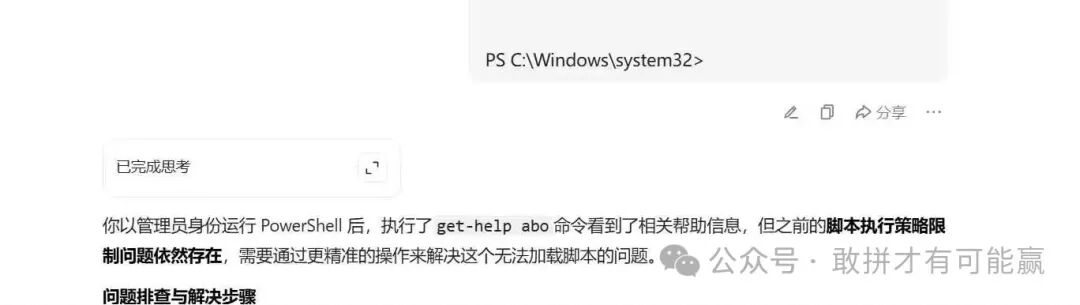
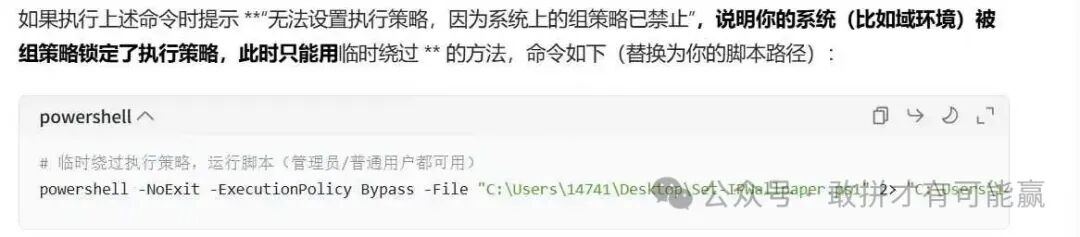
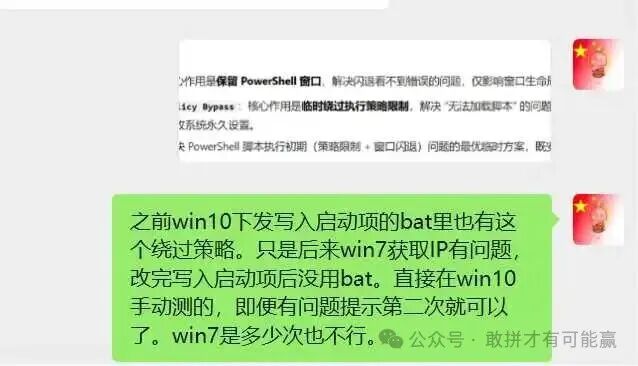
执行策略: 首次运行可能需要设置PowerShell执行策略
powershell 复制
Set-ExecutionPolicy -ExecutionPolicy RemoteSigned -Scope CurrentUser
分辨率适配: 脚本默认使用1920×1080,4K显示器建议将字体大小调整为32 系统兼容性: 测试通过Windows 10/11、PowerShell 5.1/7+ 网络延迟: 开机时如网络未就绪,可能获取不到IP,建议配合任务计划程序延迟执行
总结
这套方案完美融合了实用性、美观性和自动化,特别适合:
?? 企业IT运维批量部署 ? 公共机房设备管理 ? 多电脑办公环境 ? 家庭NAS服务器监控
部署后,你的桌面将成为最直观的"身份铭牌",再也不用为查找IP地址而困扰。
以上是win10实测过的没问题,脚本3图片显示信息只支持英文。
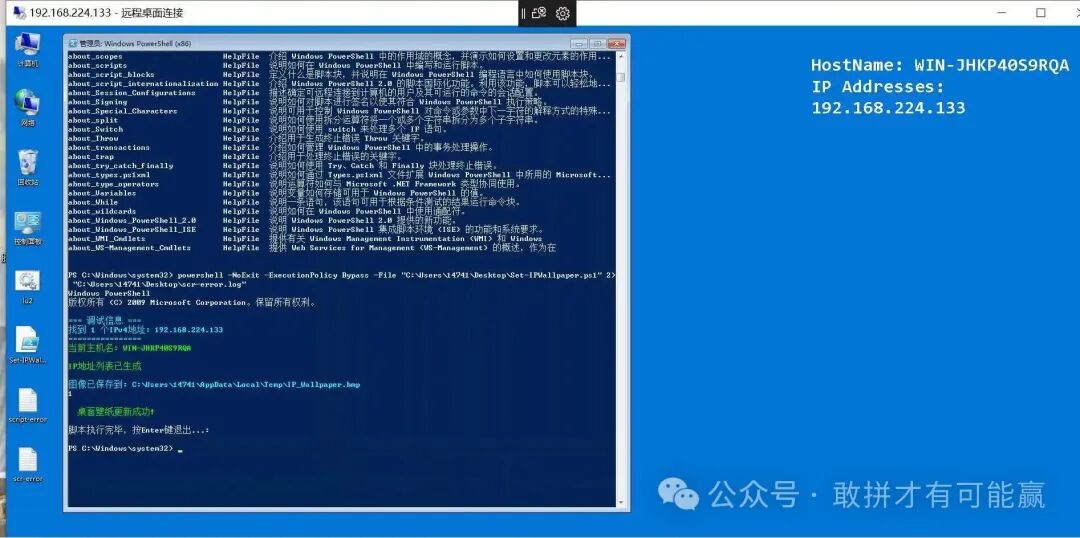
以下是win10/7同时兼容的方式(并且天融信EDR下发后也可以是图片中文)
一共三个脚本分别以下
lu.bat
@echo off
chcp 65001 >nul 2>&1  :: 解决中文乱码问题
setlocal enabledelayedexpansion  :: 启用延迟变量扩展

:: 定义文件路径
set"PS_FILE=%TEMP%\Set-IPWallpaper.ps1"
set"BAT_FILE=%TEMP%\Run-IPWallpaper.bat"  :: 获取当前BAT文件的完整路径(包括文件名)
:: 选择启动目录:当前用户(推荐)或所有用户,二选一即可
set"STARTUP_DIR=%APPDATA%\Microsoft\Windows\Start Menu\Programs\Startup"
:: set"STARTUP_DIR=%ProgramData%\Microsoft\Windows\Start Menu\Programs\StartUp"  :: 所有用户(需管理员)

:: 第一步:执行PowerShell脚本(隐藏窗口、绕过执行策略)
echo 正在执行PowerShell脚本...
powershell.exe -ExecutionPolicy Bypass -WindowStyle Hidden -File "%PS_FILE%"

:: 第二步:检查PS1文件是否存在
if not exist "%PS_FILE%" (
    echo 错误:%PS_FILE% 文件不存在!
    pause
    exit /b 1
)

:: 第三步:将PS1和BAT文件移动到启动目录(/Y 覆盖已存在的文件,无提示)
echo 正在将文件移动到启动目录:%STARTUP_DIR%
move /Y "%PS_FILE%""%STARTUP_DIR%\" >nul 2>&1
move /Y "%BAT_FILE%" "%STARTUP_DIR%\" >nul 2>&1

:: 验证移动结果
if exist "%STARTUP_DIR%\Set-IPWallpaper.ps1" and exist "%STARTUP_DIR%\%~nx0" (
    echo 成功!文件已移动到启动目录,开机将自动运行。
) else (
    echo 错误:文件移动失败,请检查权限!
)

pause
Run-IPWallpaper.bat
@echo off
powershell.exe -ExecutionPolicy Bypass -File "%APPDATA%\Microsoft\Windows\Start Menu\Programs\Startup\Set-IPWallpaper.ps1"
Set-IPWallpaper.ps1
# 防止脚本在错误时继续执行
$ErrorActionPreference = "Stop"

# 加载所需程序集
try {
    Add-Type -AssemblyName System.Drawing -ErrorAction Stop
} catch {
    Write-Host "错误: 无法加载System.Drawing程序集" -ForegroundColor Red
    Write-Host "详细错误: $($_.Exception.Message)" -ForegroundColor Red
    Read-Host "`n按Enter键继续..."
    # 移除 exit,改为 break 跳出当前执行
    break
}

# 获取IPv4地址(基于你验证过的逻辑)
try {
    # 强制转换为数组并捕获所有输出
    $ipAddresses = @(Get-WmiObject Win32_NetworkAdapterConfiguration -ErrorAction Stop |
                     Where-Object { $_.IPEnabled -eq $true } |
                     Select-Object -ExpandProperty IPAddress |
                     Where-Object { $_ -match '\d+\.\d+\.\d+\.\d+' })

    # 调试输出:脚本运行时实际获取到的内容
    Write-Host "=== 调试信息 ===" -ForegroundColor Cyan
    Write-Host "找到 $($ipAddresses.Count) 个IPv4地址: $($ipAddresses -join ', ')" -ForegroundColor Cyan
    Write-Host "================" -ForegroundColor Cyan

} catch {
    Write-Host "错误: 获取IP地址失败" -ForegroundColor Red
    Write-Host "详细错误: $($_.Exception.Message)" -ForegroundColor Red
    Read-Host "`n按Enter键继续..."
    break
}

# 获取主机名
$hostname = $env:COMPUTERNAME
Write-Host "当前主机名: $hostname" -ForegroundColor Green

# 准备壁纸参数
$bgColor = [System.Drawing.Color]::FromArgb(0, 120, 215)
$outputPath = "$env:TEMP\IP_Wallpaper.bmp"

# 检查目录是否存在
$tempDir = Split-Path $outputPath -Parent
if (!(Test-Path $tempDir)) {
    Write-Host "错误: Temp目录不存在: $tempDir" -ForegroundColor Red
    Read-Host "`n按Enter键继续..."
    break
}

try {
    # 创建位图
    $bmp = New-Object System.Drawing.Bitmap(1920, 1080)
    $graphics = [System.Drawing.Graphics]::FromImage($bmp)
    $graphics.Clear($bgColor)

    # 设置字体和画笔
    $font = New-Object System.Drawing.Font("Consolas", 24, [System.Drawing.FontStyle]::Bold)
    $brush = New-Object System.Drawing.SolidBrush([System.Drawing.Color]::White)

    # 处理IP地址列表
    if ($ipAddresses -and $ipAddresses.Count -gt 0) {
        $ipList = $ipAddresses -join "`n"
        Write-Host "`nIP地址列表已生成" -ForegroundColor Green
    } else {
        $ipList = "No IP found"
        Write-Host "`n警告: 未找到任何IP地址" -ForegroundColor Yellow
    }

    $text = "计算机名称: $hostname`nIP 地址:`n$ipList"

    # 计算文本位置(右下角)
    $margin = 50
    $textSize = $graphics.MeasureString($text, $font)
    $x = $bmp.Width - $textSize.Width - $margin
    $y = $margin

    # 绘制文本
    $graphics.SmoothingMode = [System.Drawing.Drawing2D.SmoothingMode]::AntiAlias
    $graphics.DrawString($text, $font, $brush, $x, $y)

    # 保存图片
    $bmp.Save($outputPath, [System.Drawing.Imaging.ImageFormat]::Bmp)
    Write-Host "`n图像已保存到: $outputPath" -ForegroundColor Cyan

    # 清理资源
    $graphics.Dispose()
    $bmp.Dispose()
    $font.Dispose()
    $brush.Dispose()

    # 应用壁纸
    Add-Type @"
using System;
using System.Runtime.InteropServices;
public class WallpaperAPI {
    [DllImport("user32.dll", CharSet = CharSet.Auto)]
    public static extern int SystemParametersInfo(int uAction, int uParam, string lpvParam, int fuWinIni);
}
"@

    # 设置注册表项
    Set-ItemProperty -Path "HKCU:\Control Panel\Desktop" -Name Wallpaper -Value $outputPath -ErrorAction Stop
    Set-ItemProperty -Path "HKCU:\Control Panel\Desktop" -Name WallpaperStyle -Value 2 -ErrorAction Stop
    Set-ItemProperty -Path "HKCU:\Control Panel\Desktop" -Name TileWallpaper -Value 0 -ErrorAction Stop

    # 立即应用
    [WallpaperAPI]::SystemParametersInfo(20, 0, $outputPath, 3)
    Write-Host "`n✓ 桌面壁纸更新成功!" -ForegroundColor Green

} catch {
    Write-Host "`n错误: 生成或应用壁纸失败" -ForegroundColor Red
    Write-Host "详细错误: $($_.Exception.Message)" -ForegroundColor Red
    Write-Host "错误位置: $($_.InvocationInfo.PositionMessage)" -ForegroundColor Red
    # 等待用户查看错误信息
    Read-Host "`n按Enter键继续..."
} finally {
    # 确保资源被释放
    if ($graphics) { $graphics.Dispose() }
    if ($bmp) { $bmp.Dispose() }
    if ($font) { $font.Dispose() }
    if ($brush) { $brush.Dispose() }
}
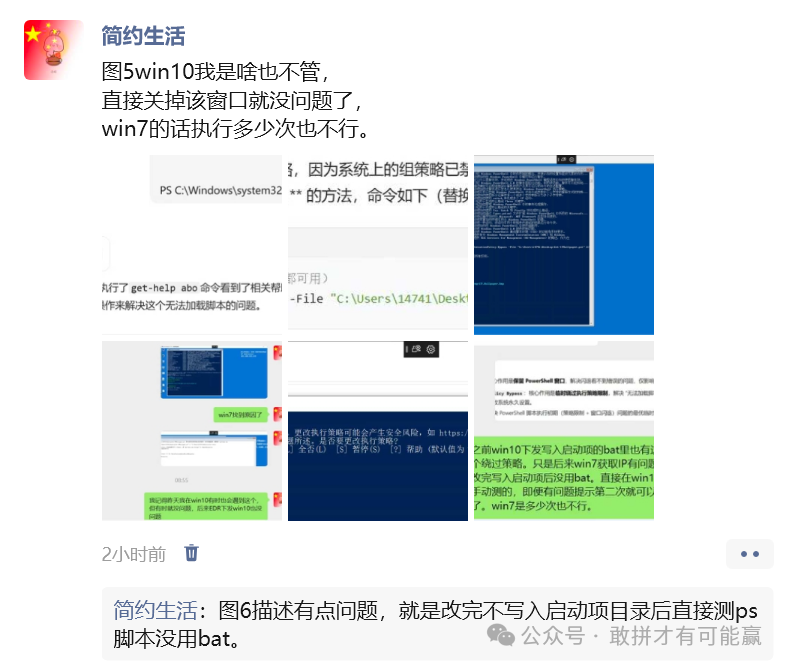
EDR只要lu.bat下发执行,另外俩不执行选择配置只接收
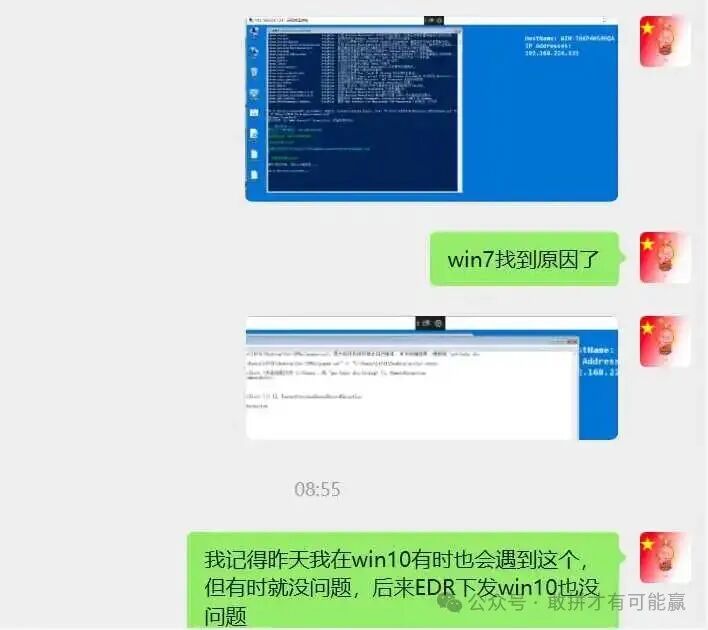
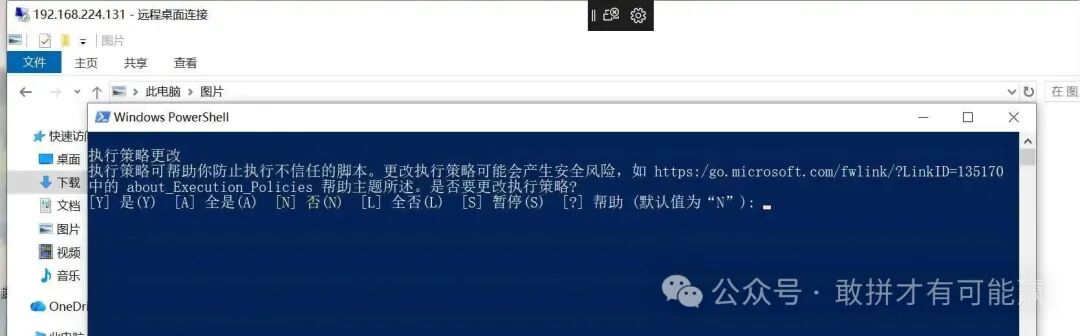
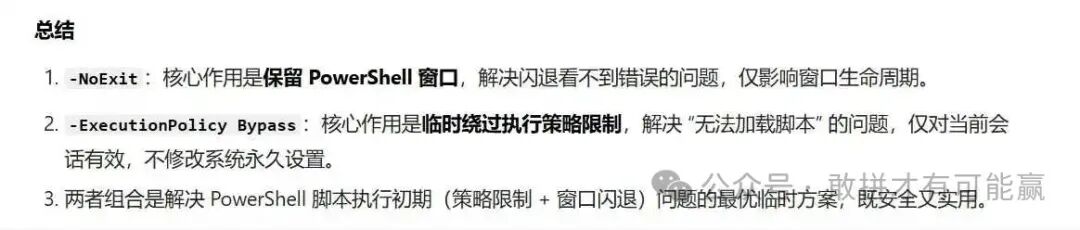
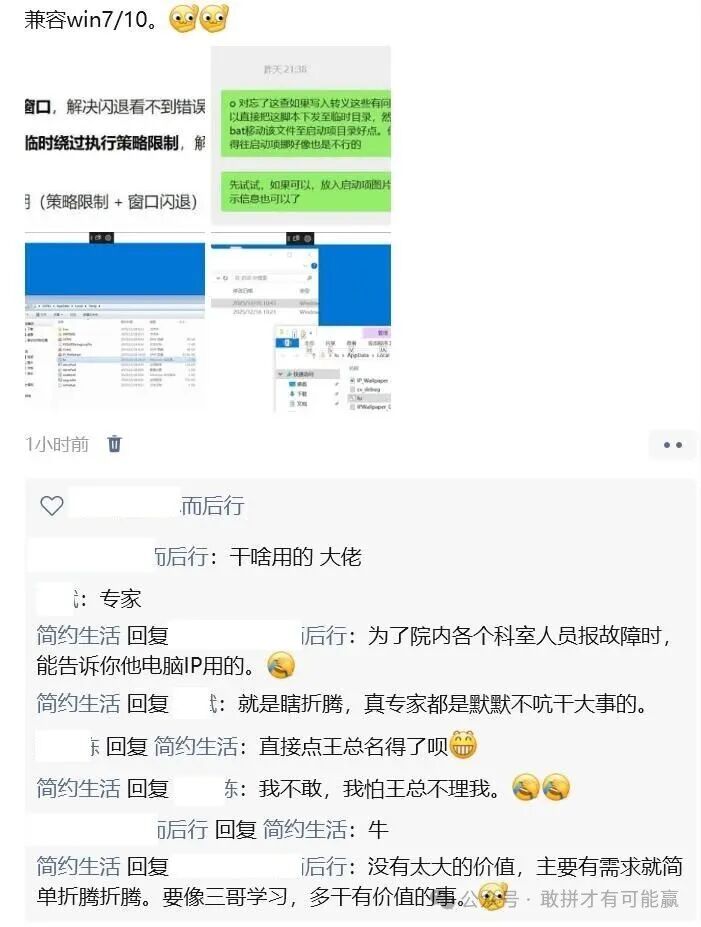
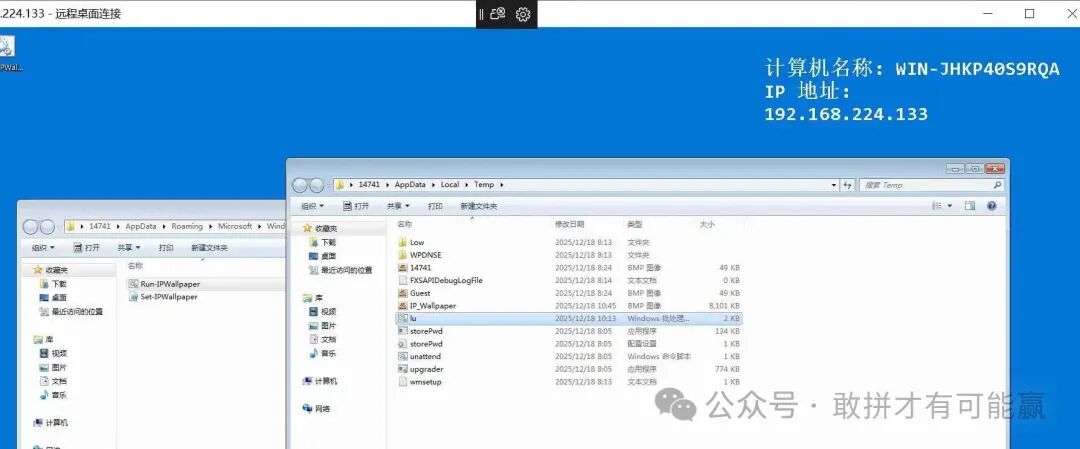
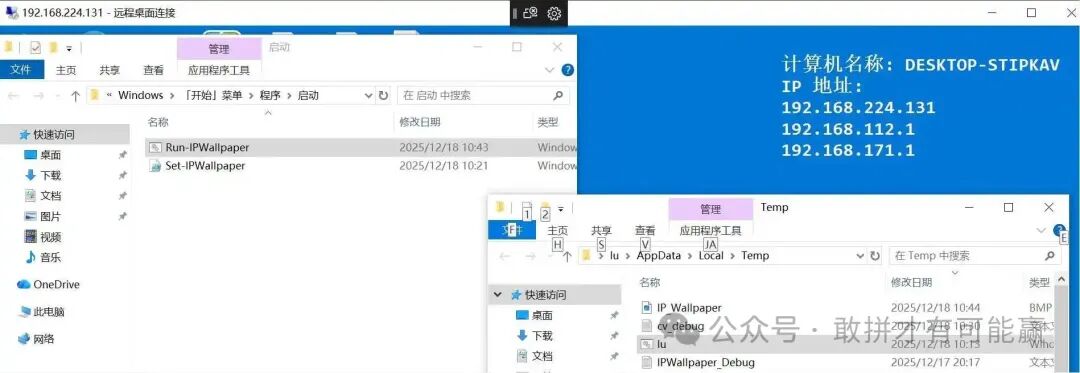
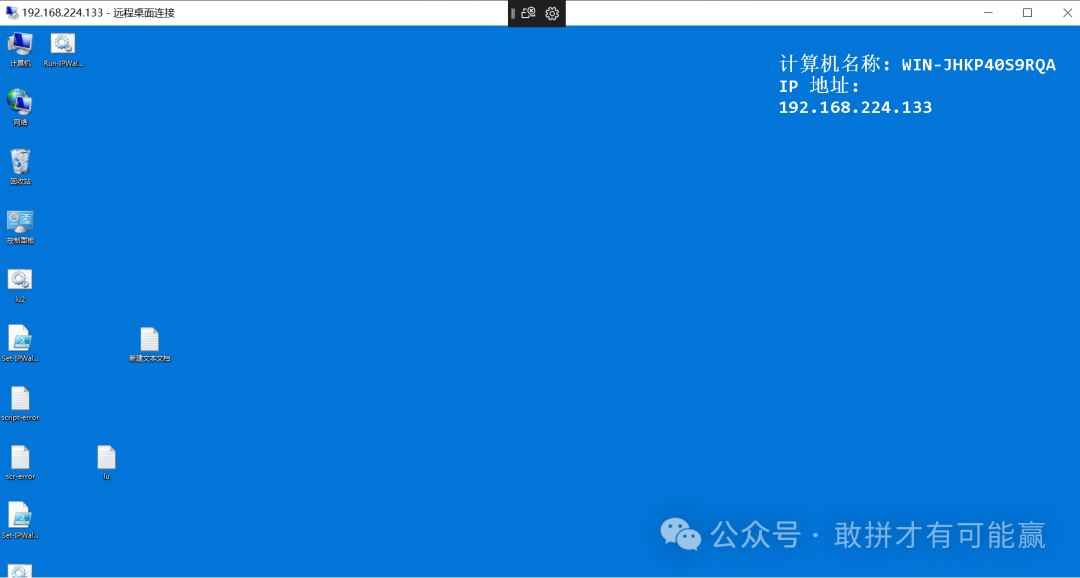
以下是从昨天下午到今天的折腾图
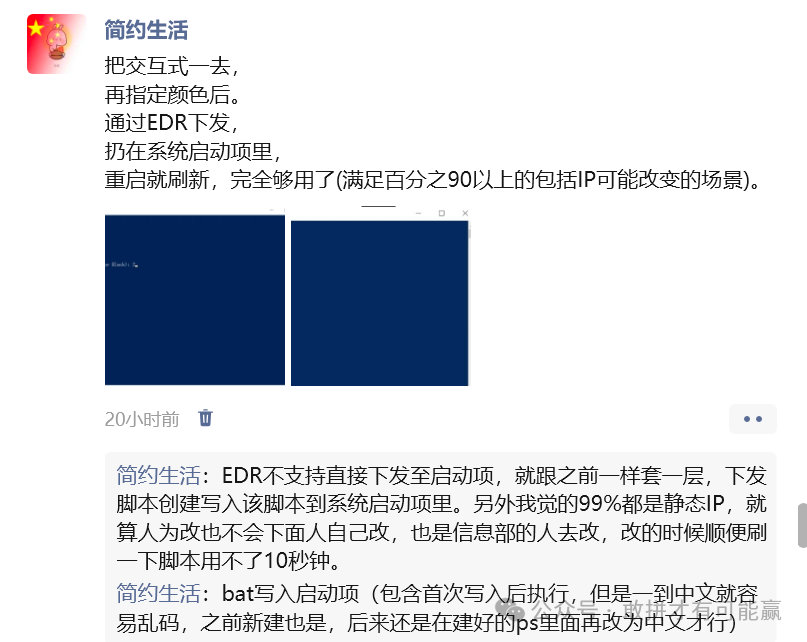
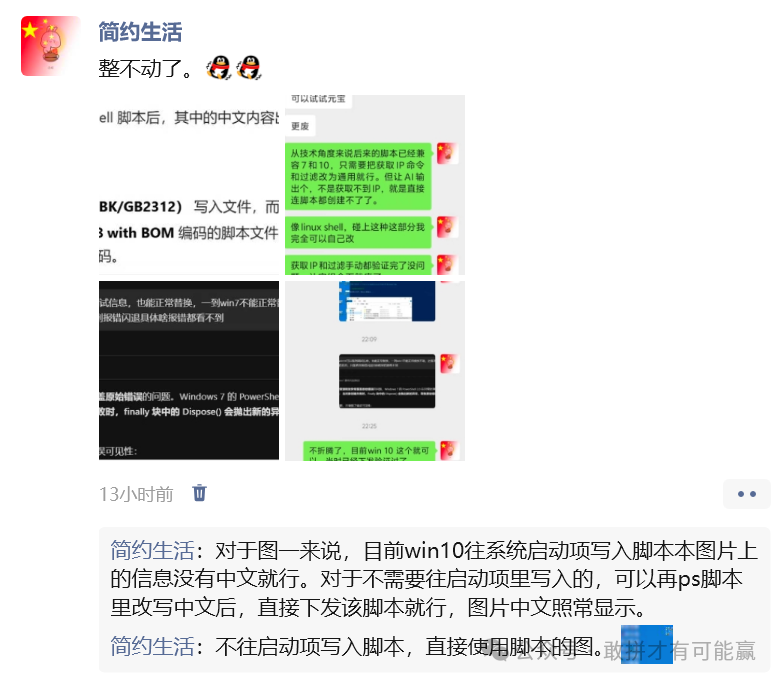
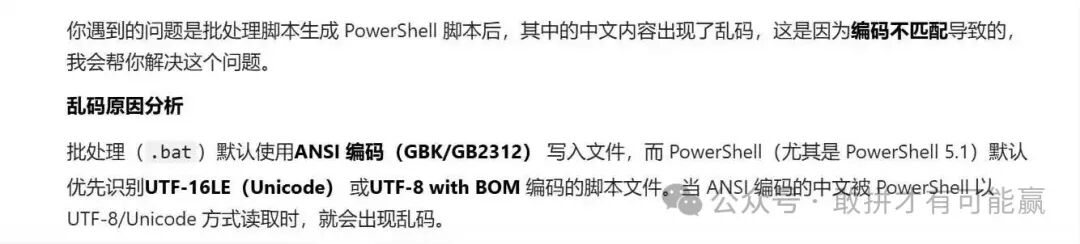

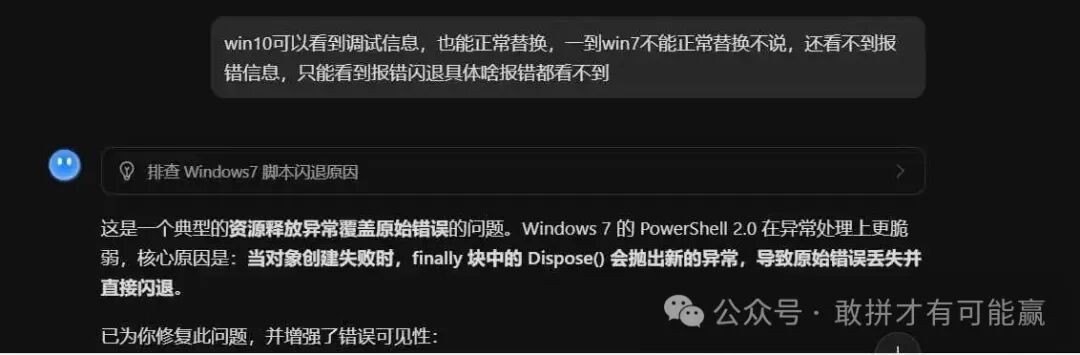
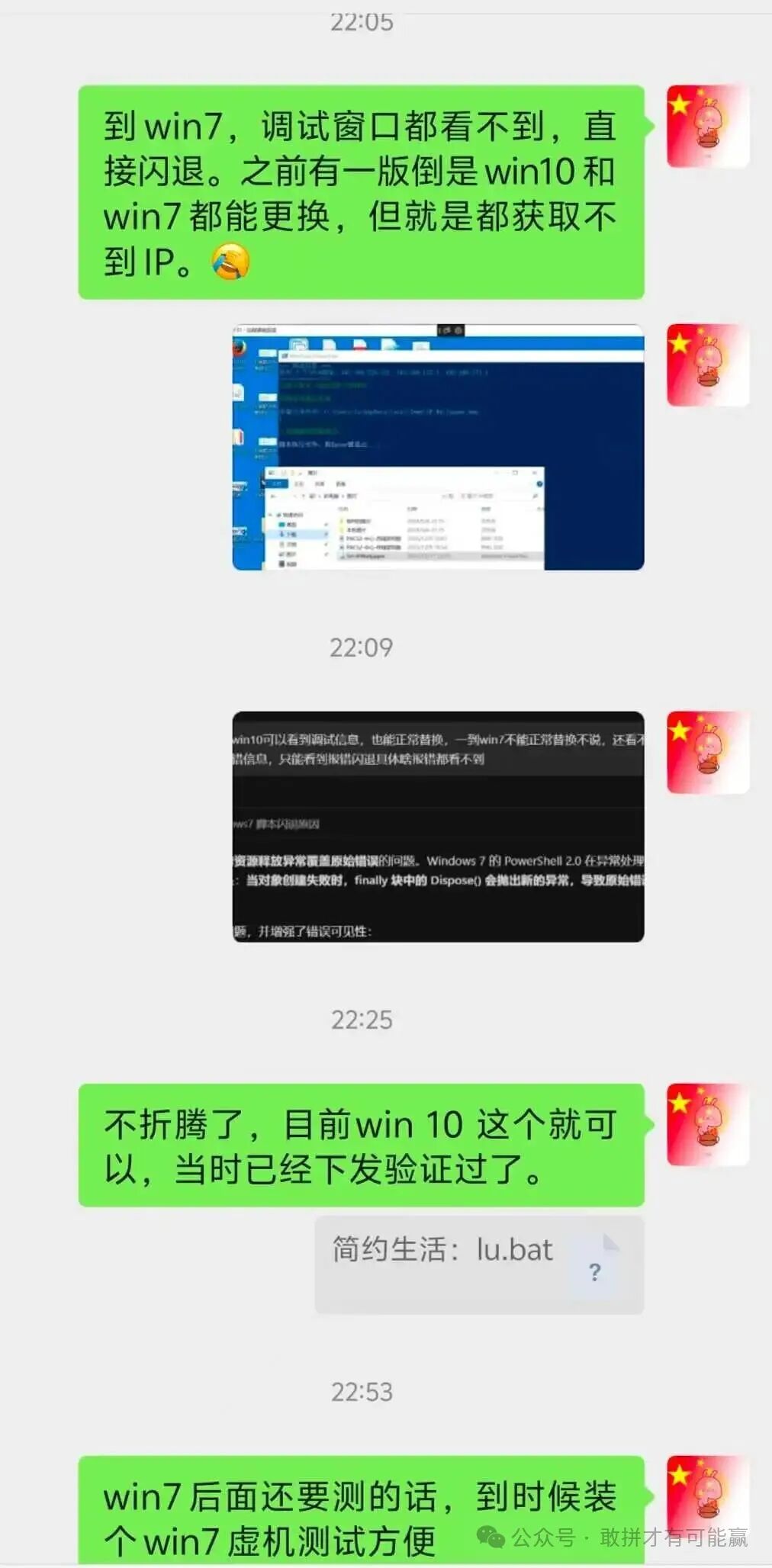
使用EDR下发测试的话,每次修改需要先上传再下发。最主要的是EDR远程,没法直接复制粘贴,会很难受。
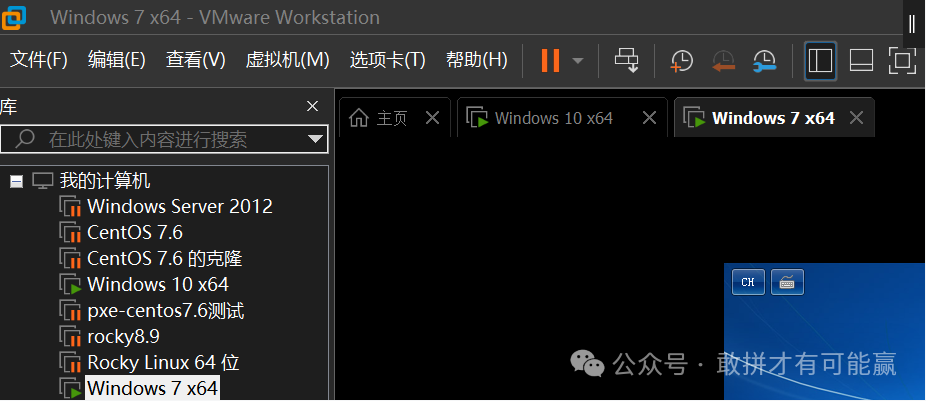
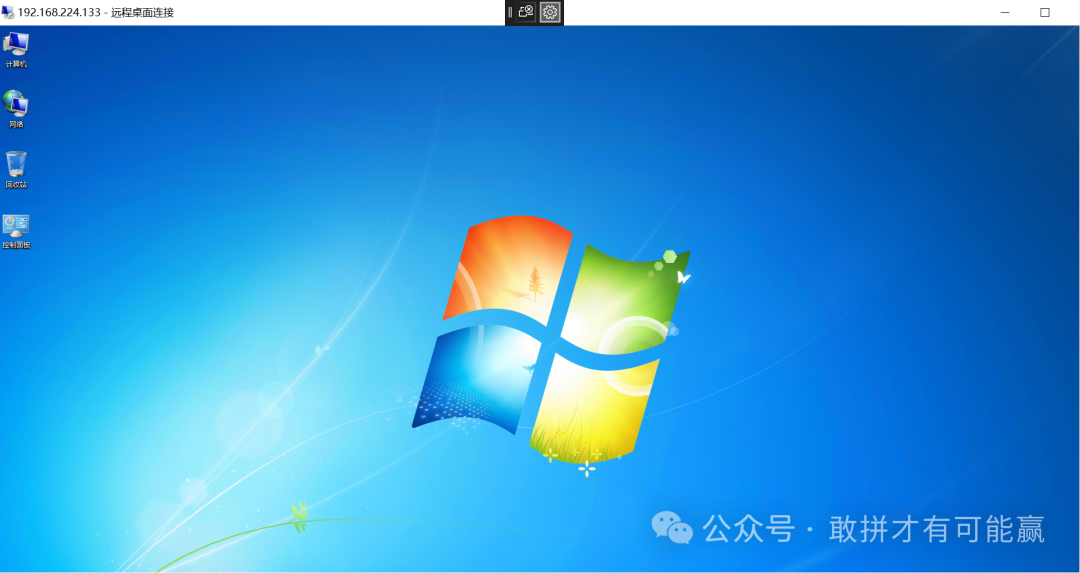
今天上班第一件事,就是在自己电脑的VMware Workstation上装了个win7系统。


 支付宝微信扫一扫,打赏作者吧~
本文链接:https://www.kinber.cn/post/6077.html 转载需授权!
推荐本站淘宝优惠价购买喜欢的宝贝:

 您阅读本篇文章共花了: